
Presentation
shotplan is a tool for implementing automated test benches supporting test execution, output verification and reporting including screenshots and video captures.
The tests are run in sequence from a test plan file in YAML format, in which tests are programmed and controlled via bash scriptlets.
A test plan splits into a sequence of test cases, in which a sequence of numbered test steps are defined.
shotplan reports about each executed test step and its result on the standard output, including a timestamped identification banner which specifies version and revision control numbers of tested items, test tools and dependencies.
Shotplan takes its name from the fact that the tool is also capable of producing screenshots and video captures for executed tests.
For a list of projects using shotplan, please check section References at the end of this document.
The following sections address the following:
-
Section Tool usage : command usage
-
Section Release history : release history to this date
-
Section Installation : how to install the tool
-
Section Test reporting : overview of the type of generated reports
-
Section Test plan file format : detailed specification of the YAML configuration properties
-
Section Test plan execution workflow : the detailed sequence of actions executed when resp. a test plan, a test case and a test step are executed.
Target applications
shotplan is initially designed and used to automate tests for system commands and user CLI applications.
Notwithstanding, thanks to graphical automation tool like xdotool, it is perfectly foreseeable to test graphical application by triggering mouse and keyboard events.
| A full automated test process of a graphical app would also require to compare the graphical output with a reference image. This feature is not available yet. |
Tool usage
Please check Online man page or execute shotplan -h
How to write test plans is explained later in section Test plan file format.
Release history
| Release tag | Revision | Log |
|---|---|---|
R1.1.2 |
97 |
Release coming along with arcv 1.2.2 |
R1.1.1 |
80 |
Release coming along with arcv 1.2.1 |
R1.1.0 |
70 |
Release coming along with arcv 1.2.0 |
R1.0.0 |
50 |
First release used to test arcv revision control tool v1.0.0 |
Installation
Shotplan installs in /usr/bin/shotplan/.
Dependencies are generally automatically installed by shotplan at runtime, with the exception of the biggest ones: imagemagick, obs-studio, vlc, for the following reasons:
-
Leave the choice for tester not seeking to produce screenshots and videos and thereby not installing those tools
-
Avoid automatic (failing) installation in docker container where it is not relevant anyway
sudo apt install imagemagick    # For making screenshots
sudo apt install obs-studio     # For video captures
sudo apt install vlc            # For visualizing video captures

wget https://slashetc.fr/download/shell-api_1.1-3_amd64.deb
sudo dpkg -i shell-api_1.1-3_amd64.deb

wget https://slashetc.fr/download/shotplan_1.1-1_amd64.deb
sudo dpkg -i shotplan_1.1-1_amd64.deb
The following table lists all the available versions. You can also click on the link to download instead of using wget:
| Debian Package | Zip | Creation time |
|---|---|---|
2026-10-24 12:04:41 +02 CEST |
||
2026-10-24 01:21:53 +02 CEST |
||
2026-09-07 00:49:00 +02 CEST |
Test reporting
Low-level text-based test reports
These reports are systematically produced by shotplan, providing information about each executed test and its result on the standard output, including a timestamped information banner indicating version and revision numbers of tested items, test tools and dependencies.
| An executed test is here referring to a complete test step execution |
To get a persistent trace of the results, the standard output has to be redirected to a text file which then can serve as test report. It is up to the tool calling shotplan to determine a suitable report filename. As a rule of thumb, it may contain at a minimum resp. :
-
a timestamp
-
a platform identification string
-
version of tested app
The text reports may contain special terminal color escape chars and are best viewed using the system tool cat.
For a sample of such test reports:
High-level test reports
This type of reports can be generated for each executed test case when the --report option is used. It enables to generate a report file for a test case in an advanced, structured text-format like XML or AsciiDoc, based on a template supplied in the test plan itself. See section Report templates below the Test plan file format.
A report contains a link to the screenshot or video generated for an executed test.
This type of generated reports has been extensively used to build arcv’s documentation
Use -T to bypass generation of this type of reports and the screenshots/video captures.
|
Test plan file format
| The test plan file can hold any name, but by convention it is usually 'shotplan.yml' |
Overall structure
A test plan splits into 3 parts as highlighted in the following screenshot (which depicts a collapsed excerpt of the arcv tool's test plan) :
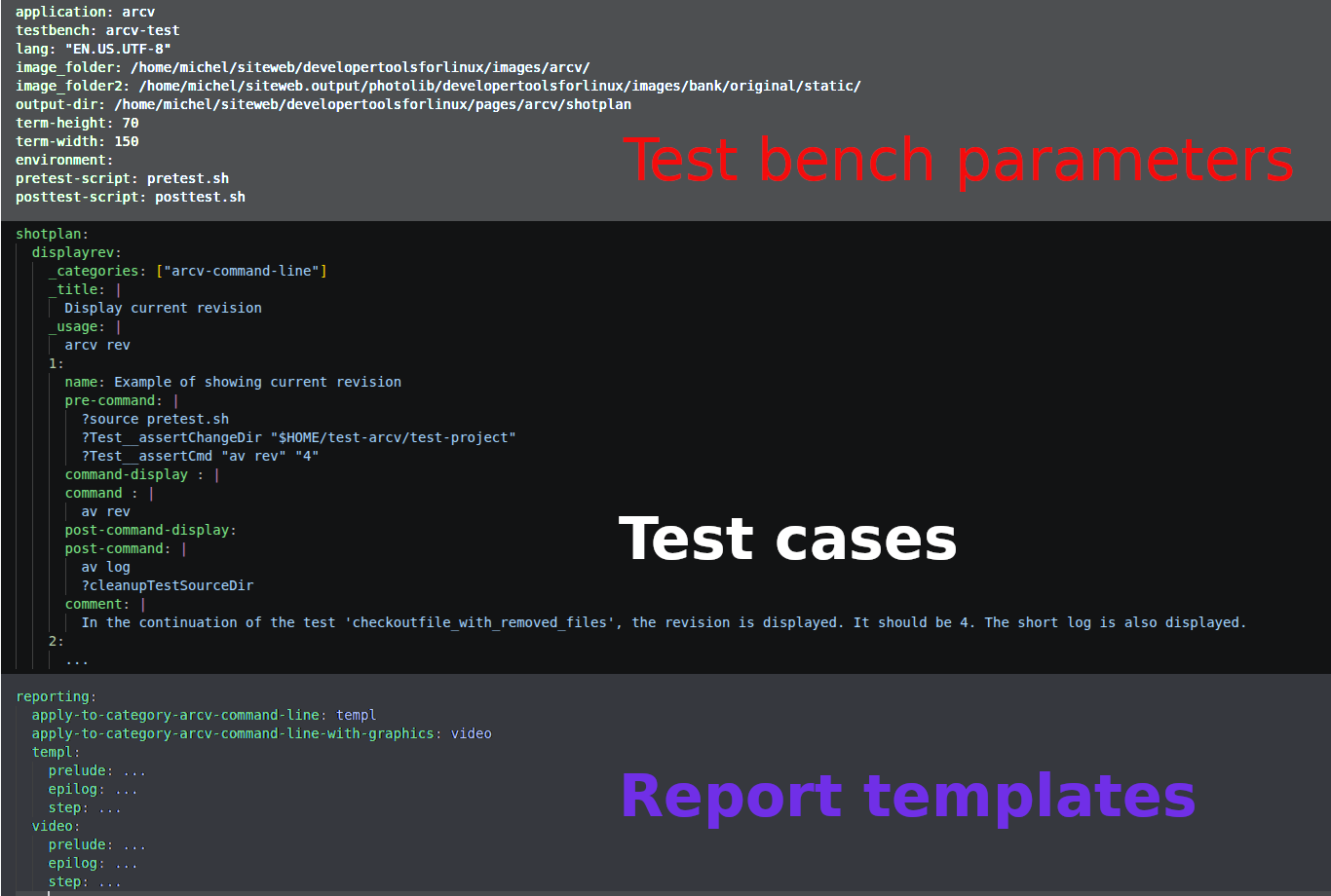
Sample test plan
Please check arcv's test plan on GitHub: https://github.com/michelm33/arcv-test/blob/main/shotplan.yml
This test plan is conforming with the latest format as described herein.
Testbench parameters
This section defines the base parameters of the test bench. It specifies what is tested and global parameters.
| Property name | Description | Usage and conditions | ||
|---|---|---|---|---|
application |
Name of tested app executable |
|
||
testbench |
Name of testing app executable |
|
||
lang |
Display language for terminal output, e.g. typically when a date is displayed |
This sets and exports the |
||
image_folder |
Output folder for screenshots and videos |
See note [1] |
||
image_folder2 |
Second-copy output folder for screenshots and videos |
See note [1] |
||
output-dir |
Output folder for generated high-level test reports |
See note [1] |
||
term-height |
Default height to which is set the terminal inside which a test is run |
This is the number of visible lines of the terminal. It can be overriden for any test case |
||
term-width |
Default width to which is set the terminal inside which a test is run |
This is the number of visible characters on one line (assuming a fix-width font). It can be overriden for any test case |
||
environment |
The very first banner message to display before executing of the plan |
This can be used for the sake of informing the tester of required conditions and useful information status (e.g. about env variable settings) |
||
pretest-script |
Script or executable to be called before executing the test plan [2] |
This script is typically used to prepare the test environment:
|
||
posttest-script |
Script or executable to be called once the test plan finished executing [2] |
This script is typically used to clean up and restore the system and environment |
Test cases
Each test case is specified in a user-defined property below the shotplan top property. The test steps of a test case are defined in child properties, which names have to be incrementing numbers starting from 1.
The value of each property, either belonging to the test case or test step, can be referenced from the report template using a matching keyword. See section Report templates for further information.
| Test case property | Test step property | Optional | Description | ||
|---|---|---|---|---|---|
_categories |
A list of names to categorize the test case. A category enables :
|
||||
_title |
Clear text describing the test case. It appears in the test banner |
||||
_usage: |
Help usage description of the tested command. Typically, only the relevant options should be emphasized here. |
||||
_usage-info |
yes |
Additional information and precisions regarding the usage, if necessary |
|||
_filter |
yes |
A filter bash command to evaluate to skip the test. If the command is successful (exit code 0), the test is skipped. |
|||
term-height |
yes |
Overriding height to which is set the terminal inside which a test step is run. Overrides default value given by global parameter |
|||
term-width |
yes |
Overriding width to which is set the terminal inside which a test step is run. Overrides default value given by global parameter |
|||
TEST STEP NUMBER |
Test step properties are defined below properties which are incrementing numbers starting from 1, e.g. |
||||
name |
Clear text describing the test step. It appears in the test banner |
||||
input |
yes |
This property enables to prompt the user for an input value associated with an input name. When an input value is entered, a shell variable named according to the input name will be assigned the entered value and will be exported to the environment. For instance, input:
VERA_DEVICE: "Prepare the VERA stick, then enter VERA partition device path (e.g. sdc1 or sdd1)"
will result in the following script execution, assuming value 'sdc1' was entered by the user when prompted: export VERA_DEVICE="sdc1" |
|||
live-recording |
yes |
(yes/no) Tells whether to trigger a video capture for the whole timespan the test is running (instead of making a screenshot at the end of the test). When not defined, screenshot is made by default |
|||
screen-keyboard |
yes |
(yes/no) Enables to control appearance of screen keyboard. When not defined, screen keyboard is always visible
|
|||
manual |
yes |
(yes/no) Tells whether the test is actually run manually from the shell by the tester rather than automatically via the
|
|||
term-height |
yes |
Overriding height to which is set the terminal inside which this test step is run. Overrides all previous values either given for test case or at global scope. |
|||
term-width |
yes |
Overriding width to which is set the terminal inside which this test step is run. Overrides all previous values either given for test case or at global scope |
|||
pre-command |
Scriptlet executed before the
|
||||
pre-command-display |
If defined, the string which is used alternatively to the |
||||
command |
Scriptlet implementing the actual test commands, emphasizing a certain functionality of the application under test. |
||||
command-display |
If defined, the string which is used alternatively to the |
||||
post-command |
Scriptlet executed after the
|
||||
post-command-display |
If defined, the string which is used alternatively to the |
||||
comment |
A description of the test step. The first line shall give a short summary and purpose of the test step. Further lines may detail the exact sequence |
||||
skip |
yes |
(yes/no) Enables to skip a test step. Mostly useful when developping and debugging. |
Report templates
This configuration part defines the templates used to generate the High-level test reports, which format is user-defined (XML, AsciiDoc etc.).
Each template is specified in a user-defined property below the reporting top property. It is common to have at least 2 templates, resp. one for the reports of tests that produce screenshots, another one for reports of tests that produce video captures.
The following table lists the available child properties to define the template itself:
| Property | Description |
|---|---|
prelude |
Part of the report which will be generated before the execution of the test case |
epilog |
Part of the report which will be generated after the execution of the test case (therefore once all test steps were executed) |
step |
Part of the report which will be generated for each test step after its execution |
A template applies to a test case category. To do so, the name of the user-defined template name must be assigned to a property formatted as follows:
apply-to-category-<CATEGORY NAME>: <TEMPLATE PROPERTY NAME>
As example, see the picture in section Overall structure. It is therefore of uttermost important to assign each test case a suitable category for the reporting.
Inside the template properties, it is possible to reference both some internal data and the property values of the running test case and test step as defined in the YAML test plan file. This is achieved by using a dedicated reserved keyword as described in the following table which gives also the relation with resp. the test case, test step or internal data.
Since the template content will be subject to a bash variable substitution, the keyword must be referenced with ${keyword}.
|
| Template keyword | Property | Property family |
|---|---|---|
APP_NAME |
application |
Testbench parameter |
PLAN_NAME |
<user defined> |
Test case (YAML key thereof) |
USAGE |
_usage |
Test case |
USAGE_INFO |
_usage-info |
Test case |
PLAN_TITLE |
_title |
Test case |
STEP_NAME |
<user defined> |
Test step (number YAML key thereof) |
IMG_TITLE |
name |
Test step |
PRECMD |
pre-command |
Test step |
PRECMDDSP |
pre-command-display |
Test step |
CMD |
command |
Test step |
CMDDSP |
command-display |
Test step |
POSTCMD |
post-command |
Test step |
POSTCMDDSP |
post-command-display |
Test step |
COMMENT |
comment |
Test step |
LIVE_RECORDING |
Target video base file name |
Internally set up |
SCREENSHOT_IMAGE |
Target image base file name |
Internally set up |
OUTPUT_FILE |
Target report output file name |
Internally set up |
TARGET_FOLDER |
Target output folder for screenshots and videos |
Internally set up |
Test plan execution workflow
Overview
The tests are executed in sequence as programmed by the scriptlets embedded in YAML test plan, test case in order of definition, test steps from 1 to n within a test case.
The Test plan execution workflow is therefore automated, except for those tests requiring a user interaction for a live video recording.
When high-level reporting is active (--report), each test output on the screen is captured in a screenshot at the end of the test execution, just before execution of the next test.
| The window subject to the screenshot is the last opened window. If the test step only executes plain command lines, the screenshot window will be the terminal within which the test step was run. |
| The screen(s) subject to the video capture shall be defined in the OBS collection holding the same name as the executable under test. |
Overall test plan execution workflow

Test step execution workflow

getsshot.sh execution workflow
| The window subject to the screenshot is the last opened window. If the test step only executes plain command lines, the screenshot window will be the terminal within which the test step was run. |

Here’s an example of produced screenshot:
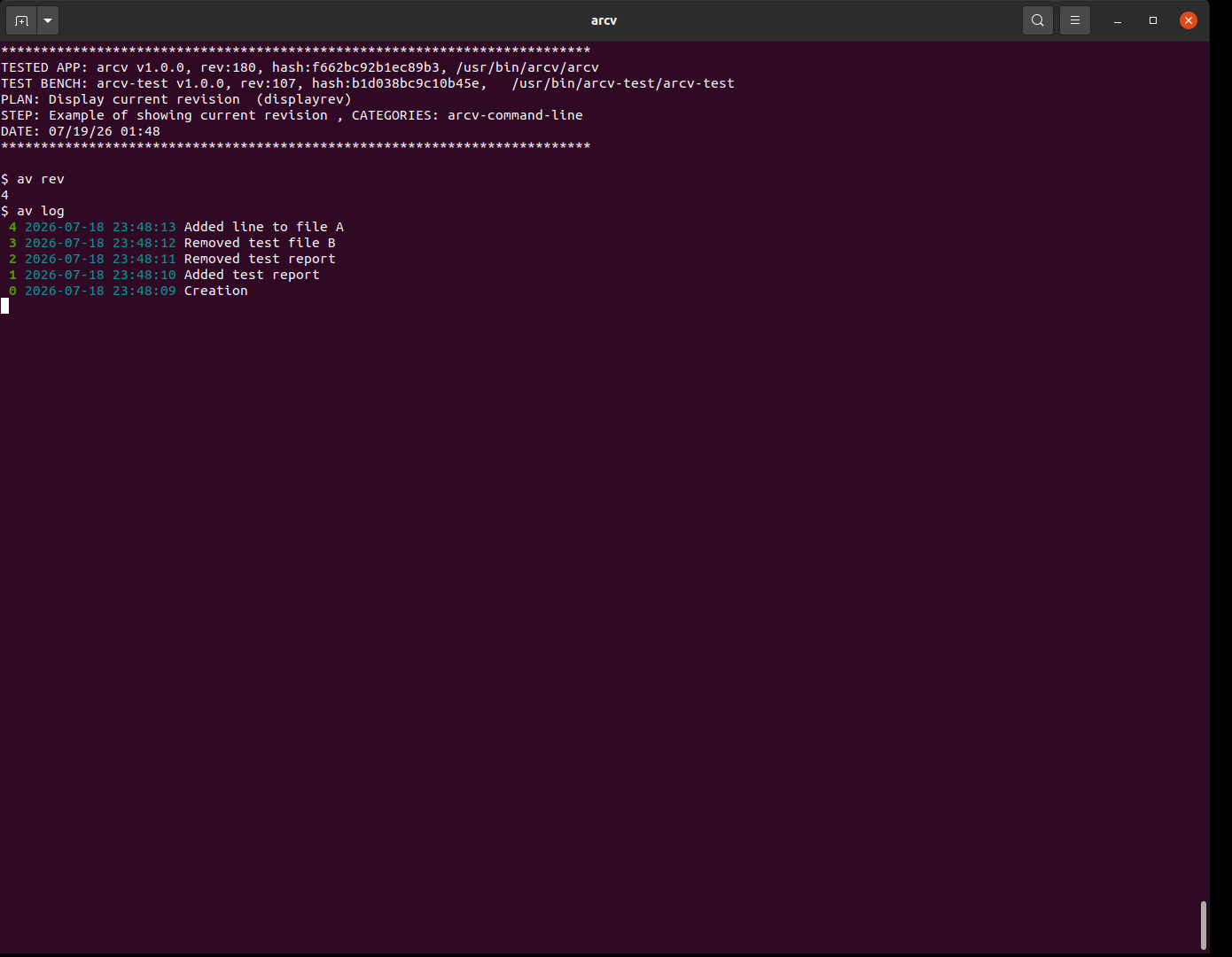
catch-obs-recordings.sh execution workflow
| The screen(s) subject to the video capture shall be defined in the OBS collection holding the same name as the executable under test. |

Scriptlets evaluation workflow
The diagram thereafter depicts the evaluation workflow of the scriptlets, whichever they are for executing test pre-commands, actual test commands or test post-commands.
The result of each executed line of a scriptlet is checked for success, i.e. it must return 0, except when disabled using the relevant metachar.
In case of failure of any line evaluation, the scriptlet execution is interrupted and the currently running script, in this case either getsshot.sh or catch-obs-recordings.sh, is exited with a non-zero value.
The evaluation is implemented by the Shotplan__exeShotCommand function defined in file shotplan_lib.sh.
|
Assertion Macros
For the sake of implementing finer checks, like e.g. the exact command line exit code or command line output content or file content inspection, a set of assertion macros are also available in the shell-api library. See further detail in Appendix 1 : Assertion macros.
Like C assertions, a failed checked will result in the direct exit of the currently running script.

Scriptlet control meta-chars
Any line of code can be prefixed with meta char to control the behavior of the evaluation. The following table lists those control chars:
| Meta-char | Effect |
|---|---|
? |
The executed line is not echoed. Note that this does not disable any output of the executed command |
?? |
Ignore the return value of the executed command. It can be used where the evaluation does or should not matter for the test purpose |
! |
Enables to mask substrings with replacement values, both in the executed line itself and in its output (standard output). |
For the meta-char '!' to take effect, the following scripts have to be defined:
-
shotplan__cmdpreproc.sh
-
shotplan__cmdpostproc.sh
where the REPLACE_MAP and REPLACE_POST_MAP are filled.
In the following example:
-
the string FTP_password appearing in the code line will be replaced with mysecretpassword prior its evaluation
-
Reversely, the string mysecretpassword appearing in the execution output will be replaced with FTP_password.
REPLACE_MAP["FTP_password"]="mysecretpassword"
REPLACE_POST_MAP["mysecretpassword"]="FTP_password"
Specific platforms and environments
The tests can be run automatically in a docker container by deactivating reporting (-T option).
GPL License
The tool is under GPL-3 license.
References
Shotplan was used to validate the following tools:
Supporting this work
Development
You can contribute by enriching yourself the tool via the GitHub page at https://github.com/michelm33/shotplan.
git clone https://github.com/michelm33/shotplan
You’ll need to create a symbol link to a release or development version of shell-api. Please check page https://slashetc.fr/en/developertoolsforlinux/shellapi for installing either a release or a zip of the library.
Financial
You can also support the original author via the donation page Donate & Gifts online page.
Thanks
-
The Linux community
-
OBS studio team
-
vlc viewer
-
ImageMagick image manipulation tools
-
help2man an utility to generate man pages
-
Google Translate
Probably this list may be completed over time, sorry if I missed anyone!
Appendix 1 : Assertion macros
The following assertion 'macros' from the shell-api are available to implement fine checks.
Based on the test outcome, a macro will always display a diagnostic message.
Upon failure and result mismatch, the current running shell will be exited with code -1 (255).
| Shell function | Description |
|---|---|
Changes the current working directory to the passed one. On failure, exits the current shell script (_exit -1 is called) |
|
Same as Test__assertChangeDir, except that it creates the directory when it does not exist. On failure to cd or create the folder, exits the current shell script (_exit -1 is called) |
|
Removes the passed directory and all its content recursively. Exits the current shell script (_exit -1 is called) if the folder does not exist or the removal failed. |
|
Checks that the list of passed directory paths are valid (exist). Otherwise, exits the current shell script (_exit -1 is called) when at least one folder does not exist. |
|
Checks that the list of passed regular file paths are valid (exist). Otherwise, exits the current shell script (_exit -1 is called) when at least one file does not exist. |
|
Checks that the list of passed regular file paths are not valid (do NOT exist). Exits the current shell script (_exit -1 is called) when at least one file exists. |
|
Checks whether the content of the passed file matches exactly the string passed as second argument. Thus, char case is relevant. Exits the current shell script (_exit -1 is called) when the file does not exist or the content does mismatch |
|
Checks whether the content of the passed file matches the specified string pattern as second argument. Pattern is like those passed to the bash’s [[ ]] test operator. Exits the current shell script (_exit -1 is called) when the file does not exist or the content does not match the pattern |
|
Checks whether the passed file contains a line corresponding exactly to the string passed as second argument, thus char case is relevant. Exits the current shell script (_exit -1 is called) when the file does not exist or line was not found. |
|
Checks whether the last line of the passed file corresponds exactly to the string passed as second argument. Thus, char case is relevant. Exits the current shell script (_exit -1 is called) when the file does not exist or line was not found. |
|
Checks whether the line of the specified line number of the passed file corresponds exactly to the string passed as third argument. Thus, char case is relevant. Exits the current shell script (_exit -1 is called) when the file does not exist or line was not found. |
|
Test whether 2 files have exactly the same content. 'diff' tool is used for the test. On failure, exits the current shell script (_exit -1 is called) |
|
Tests whether a symbolic link points to the specified absolute path On failure, exits the current shell script (_exit -1 is called) |
|
This checks the first output line resulting from passed command execution. Exits the current shell script (_exit -1 is called) when there’s a mismatch. |
|
This checks that the output of command matches that of a reference file content. 3rd parameter tells whether to ignore whitespaces at the beginning and end of each content lines to compare Optionally, start and end line numbers can be specified. Optionally, an additional space-separated line numbers to be ignored can be specified. |
|
This checks the output of one command is the same of another command Exits the current shell script (_exit -1 is called) when there’s a mismatch. |
|
This checks the exit code of the passed command execution against the passed reference value Exits the current shell script (_exit -1 is called) upon mismatch |
|
This checks the exit code of the passed command execution is different of the passed reference value Exits the current shell script (_exit -1 is called) when the exit code does match |